Introduction
I recently deployed a backup system for my local infrastructure, drawing inspiration from the Ansible code in the Arch Linux infrastructure repository. This post documents the process and my thoughts along the way, covering the considerations before implementation, how it was implemented, and how the backup system itself is monitored.
Backup System
Solution
I chose borg as the backup solution. borg is a backup program that supports deduplication, compression, and encryption.
On the significance of encryption:
A backup system essentially copies local data and stores it in another location. Backup encryption means encrypting the data before sending it to that other location. Since backups are typically stored on untrusted third-party services such as Aliyun or AWS object storage, encryption is necessary.
On the significance of deduplication and compression:
Third-party storage services generally charge based on the amount of space used. Using less space means lower costs.
When borg creates a backup, it splits large files into small chunks. The chunk size is dynamically adjusted based on content, and each chunk has a hash value used for deduplication. Chunks with identical hashes are stored only once. The final backup size is the compressed size of the deduplicated data.
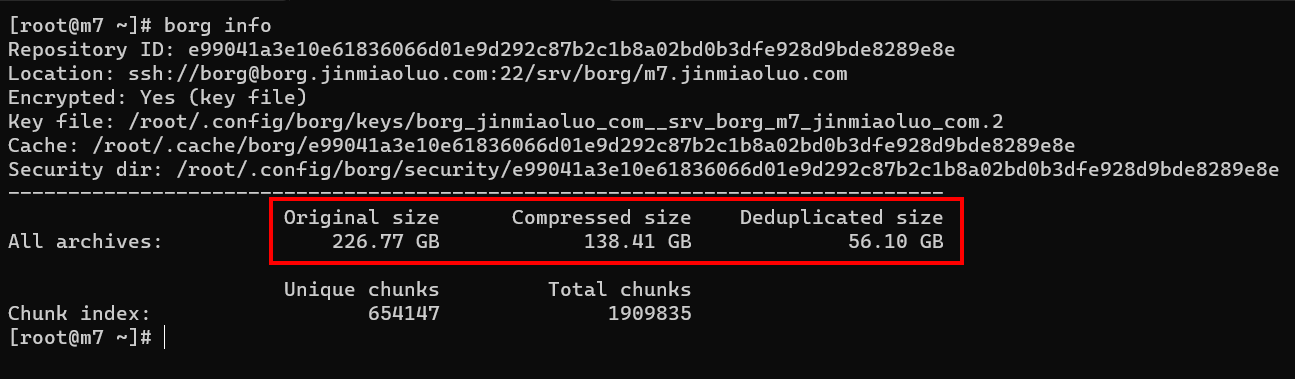
As shown in the figure, 226.77 GB of original data (Original size) was compressed to 138.41 GB (Compressed size), and after deduplication the size was reduced to 56.10 GB (Deduplicated size). In practice, you only need to pay for 56.10 GB of storage per month.
Backup Rules
The backup targets the entire system. The first backup is a full system backup, and subsequent backups are incremental backups provided by borg’s chunking mechanism.
The specific backup rules can be found in the borg-backup.sh.j2 file in the Arch Linux infrastructure repository.
The general workflow is as follows:
- Check if the server to be backed up runs any database services. If so, create a dump file for each database using the official dump tools (to ensure data consistency and version compatibility).
- Check whether the filesystem is btrfs.
- If the server root is on a btrfs filesystem: since btrfs snapshots of a subvolume do not include the contents of nested subvolumes, the process is:
- Enumerate
/and all its subvolumes. - Create a snapshot within each subvolume. For example, the snapshot of
/is/backup-snapshot, and the snapshot of subvolume/home/jinmiaoluois/home/jinmiaoluo/backup-snapshot. - Bind-mount all subvolume snapshots into
/backupusingmount -o bind. For example:- The snapshot
/backup-snapshotof subvolume/is mapped to/backup. - The snapshot
/home/jinmiaoluo/backup-snapshotof subvolume/home/jinmiaoluois mapped to/backup/home/jinmiaoluo.
- The snapshot
- Back up
/backup, effectively achieving a full system backup.
- Enumerate
- Otherwise: if the server root is not on btrfs, simply back up
/directly.
- If the server root is on a btrfs filesystem: since btrfs snapshots of a subvolume do not include the contents of nested subvolumes, the process is:
- Trigger a backup once per day using a systemd timer.
It is worth noting that snapshots allow fast local state preservation, like taking a photograph. However, creating a remote system backup involves comparing and copying the entire system. Thanks to borg’s chunking mechanism, from the second backup onward, only the modified content is compressed, encrypted, sent, and stored remotely. As a result, the actual intranet bandwidth pressure is minimal. The comparison and compression operations are performed on the server initiating the backup, which effectively distributes the computational load. Even when backing up a cluster of servers at scale, the borg server itself does not face computational pressure – it only needs to provide sufficient storage space.
Pruning Strategy
The backup pruning strategy follows the GFS (Grandfather-Father-Son) scheme, which defines how many backups to retain at daily, weekly, and monthly intervals. For example:
--keep-daily=7 --keep-weekly=4 --keep-monthly=6
Assuming we back up once per day and today is June 27, 2023, the --keep-daily=7 --keep-weekly=4 --keep-monthly=6 strategy would retain the following number of backups:
-
--keep-daily=7: Retain the most recent 7 daily backups, yielding 7 backups. -
--keep-weekly=4: Retain 4 weekly backups. The key point is that these 4 weekly backups do not include backups already retained by--keep-daily=7. So if we take a weekly backup every Sunday, we retain the 4 Sunday backups from the preceding 4 weeks, yielding 4 backups. -
--keep-monthly=6: Retain 6 monthly backups. Similarly, these do not include backups already retained by--keep-daily=7and--keep-weekly=4. So if we take a monthly backup on the first day of each month, we retain 6 monthly backups, yielding 6 backups.
In total, we retain 7 (daily) + 4 (weekly) + 6 (monthly) = 17 backups. The oldest backup might be from around November 30, 2022, roughly half a year ago.
This pruning strategy ensures that costs remain reasonable and controllable while keeping backup data useful. The older a backup is, the more changes are lost when restoring from it, so older backups are retained in smaller quantities.
Access Control
Borg access control is based on SSH authentication. Therefore, controlling who can create and read backups is essentially a matter of managing the SSH authorized_keys file.
Two types of public keys are added to the remote borg server’s authorized_keys file:
- The public key of each server that needs to be backed up.
- The public keys of all operations team members.
Regarding server access:
When a server is initialized, an SSH key pair is created for the root user. The root user’s public key is added to the remote borg server’s authorized_keys in the following format:
command="borg serve --restrict-to-path /srv/borg/m7.jinmiaoluo.com",restrict ssh-rsa AAAA...CQ== root@m7.jinmiaoluo.com
Using SSH options, each server is restricted to accessing only its own backup directory via borg serve --restrict-to-path /srv/borg/m7.jinmiaoluo.com, where m7.jinmiaoluo.com is the hostname of the backed-up server. Data from different servers is stored under /srv/borg/ in hostname-specific directories.
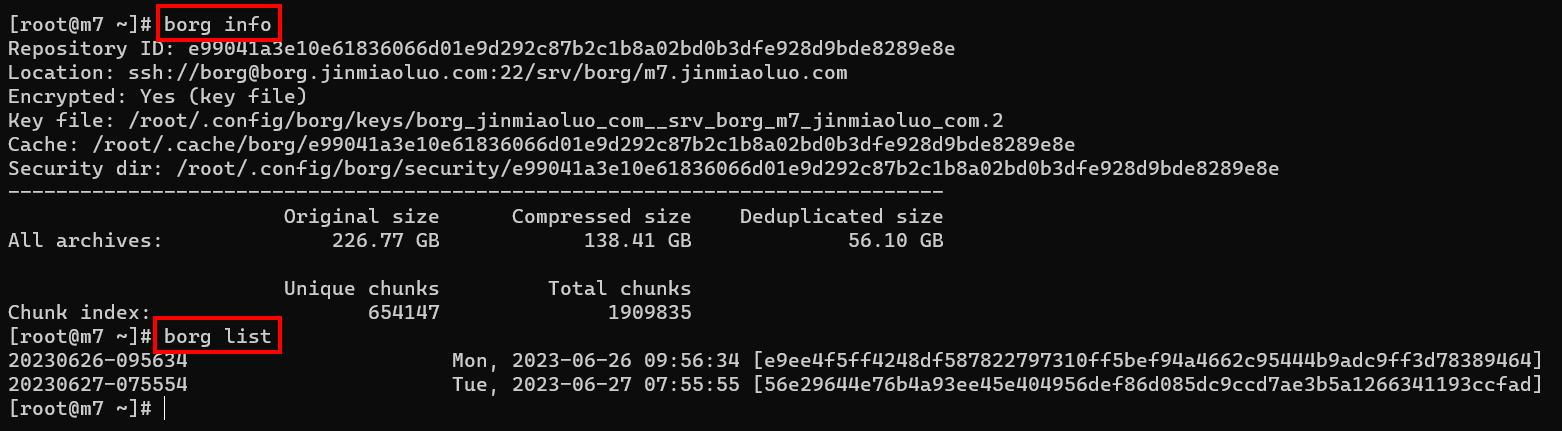
The Arch Linux Team wraps the borg binary with pre-configured remote address information for each server that needs to be backed up. See borg.j2, which is rendered as /usr/local/bin/borg with execute permissions.

Borg operations on a given server default to that server’s remote repository.
Regarding team member access:
Similar to server access, but the --restrict-to-path is relaxed from a specific server path to the entire borg directory --restrict-to-path /srv/borg/:
command="borg serve --restrict-to-path /srv/borg/",restrict ssh-rsa AAAA...YQ== jinmiaoluo@gmail.com
Team members typically access the backup system during disaster recovery or incident review, when they need to examine the previous state of specific files or directories.
Steps for team members to access the backup system:
-
Each server’s backup data is encrypted with a local borg key before being sent to the remote. Therefore, an Ansible task is used to fetch the borg keys from all servers that need to be backed up and store them locally for team member use. See fetch-borg-keys.yml.
-
With the keys in hand and your SSH public key added to the remote
authorized_keys, you can access the repository by providing the repository address. See borg.sh. The result looks like this:
-
To restore data from a backup, use borg’s mount feature to mount the backup as a filesystem to a local
mntdirectory. You can then access the backup just like local files and directories:
Suppose I need to restore the Jira server from a backup.
First, run the following command to fetch the decryption keys for all server backups:
ansible-playbook playbooks/tasks/fetch-borg-keys.yml
This command copies the decryption keys from each server to the borg-keys directory under the local repository root:
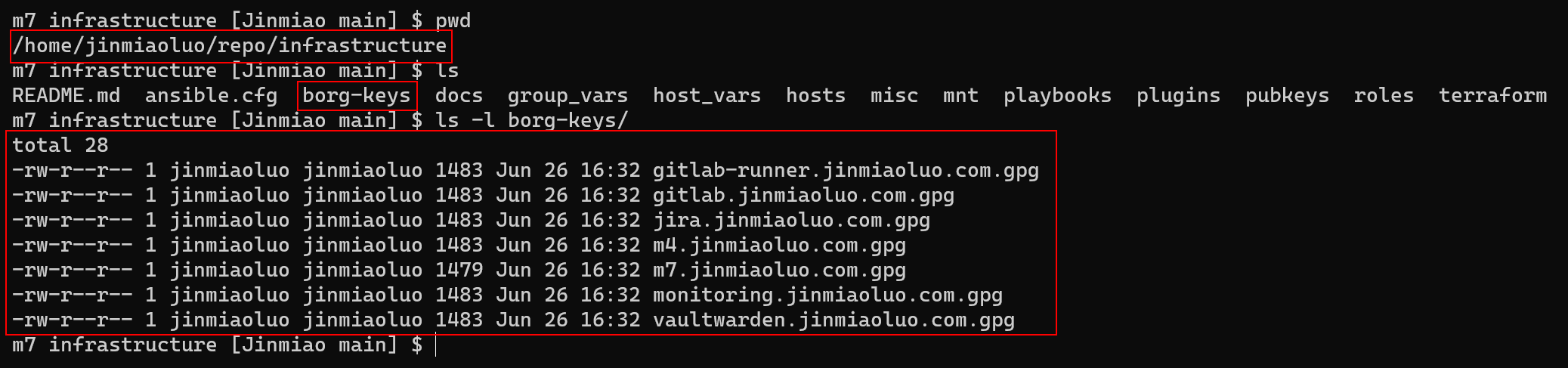
With the decryption keys, we can use misc/borg.sh locally to list all available backups for the Jira server:
misc/borg.sh list ssh://borg@borg.jinmiaoluo.com:22/srv/borg/jira.jinmiaoluo.com
After running the command above, we can see all available backups for the Jira server:
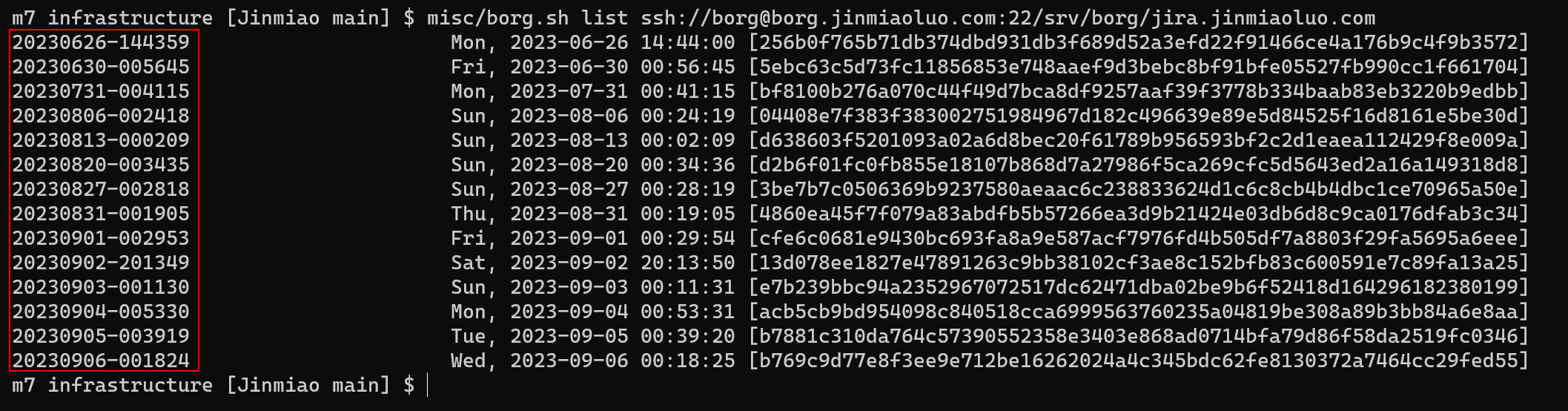
Each row in the figure corresponds to a full backup of the Jira server on that date. Suppose we want to restore data from the backup made on September 2, 2023 (i.e., 20230902-201349 in the screenshot).
Using the following command, we can mount that backup as a filesystem to the local mnt directory:
mkdir -p mnt
misc/borg.sh mount -o ignore_permissions ssh://borg@borg.jinmiaoluo.com:22/srv/borg/jira.jinmiaoluo.com::20230902-201349 mnt
Once mounted, you can access the backup data.
The mnt/backup directory is equivalent to the Jira server’s root directory as it was on September 2, 2023.

You can then use rsync or other tools to restore the entire system or specific files from the backup. When done, simply unmount:
umount mnt
Monitoring the Backup System
The backup system includes the following monitoring metrics:
- Total capacity of the backup system
- Available space on the backup system
- Used space per server
The backup system includes the following alerting metrics:
- Alert when a server’s backup fails
Handling overall metrics:
Since my local borg server is a virtual machine with backup data stored on a virtual disk, I can derive the total capacity (total size of the virtual disk) and available space (free space on the virtual disk) from the data provided by node_exporter for that virtual disk:

Used space per server:
The used space per server is obtained via /usr/local/bin/borg info. See borg-textcollector.sh.
This script uses node_exporter’s textfile collector to expose the timestamp of the last backup and the repository size to Prometheus.

With these monitoring metrics, we can determine the backup space used by each server:

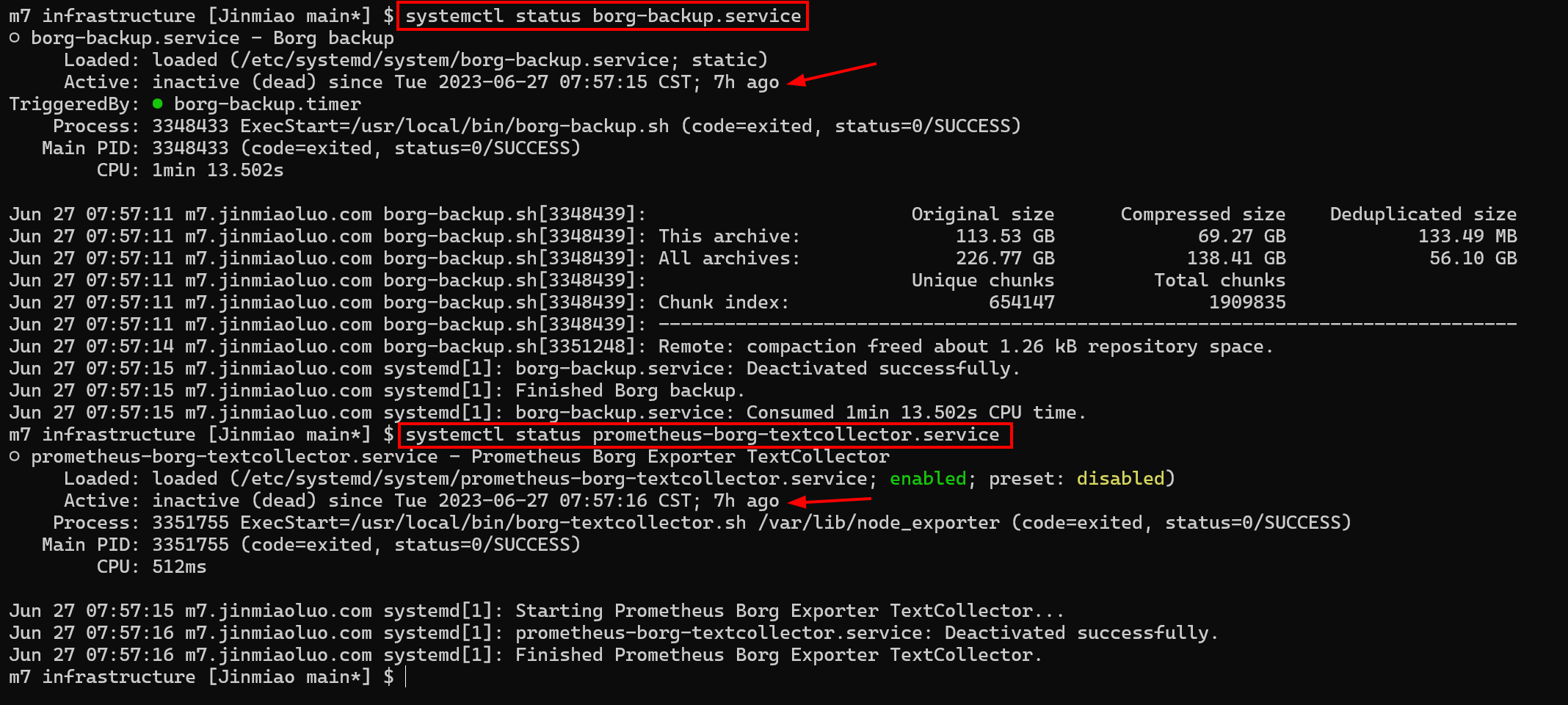
When backup-related data is generated:
Backups are triggered daily by borg-backup.timer, which runs borg-backup.sh.j2.
prometheus-borg-textcollector.service (which invokes borg-textcollector.sh) defines:
[Install]
WantedBy=borg-backup.service
This is a weak dependency, so the two monitoring metrics – local backup space used and the timestamp of the last backup – are updated each day when the backup completes.
Backup failure alerting:
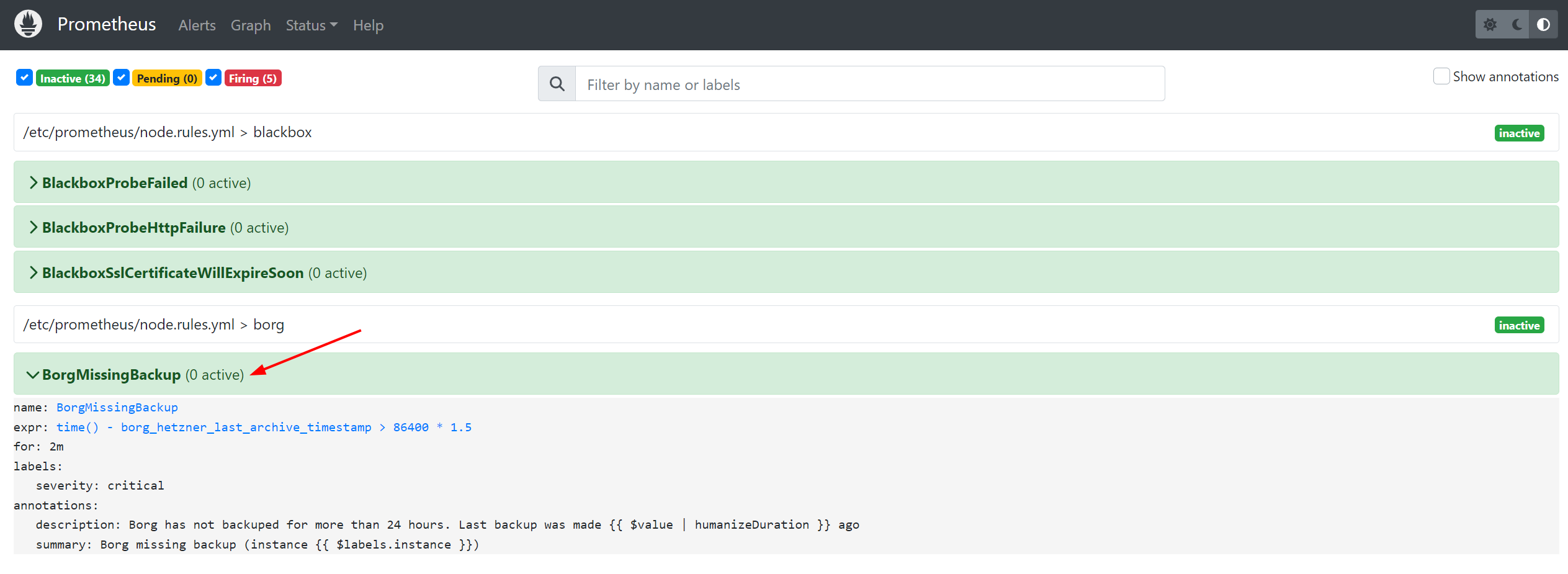
With the timestamp of the last backup, a simple calculation:
- name: borg
  interval: 60s
  rules:
    - alert: BorgMissingBackup
      expr: time() - borg_hetzner_last_archive_timestamp > 86400 * 1.5
      for: 2m
      labels:
        severity: critical
      annotations:
        summary: 'Borg missing backup (instance {{ $labels.instance }})'
        description: 'Borg has not backuped for more than 24 hours. Last backup was made {{ $value | humanizeDuration }} ago'
can identify servers that have not been backed up for more than 24 hours, i.e., servers where the backup may have failed.
Closing Thoughts
This post documents my experience implementing a backup system locally after studying the Arch Linux Infrastructure repository. To avoid excessive detail that might obscure the main points, some specifics were intentionally omitted. Also, since my implementation was done in a local virtualization environment, some aspects differ from Arch Linux’s actual practices. For example, Arch Linux employs an On-Site/Off-Site dual backup strategy. Their servers are hosted on Hetzner, and in addition to using Hetzner’s StorageBox for backup storage, they also use another provider, rsync.net, as a backup storage vendor to mitigate the risk of data loss from relying on a single provider.
This post aims to provide a reference for those looking to implement a borg-based backup system. For the actual implementation details, please read the code directly: infrastructure. Finally, thanks to everyone who contributes to the continued stability of the Arch Linux community.