Introduction
My local machine is a Windows 11 ThinkPad T480, while my development environment runs on a Linux server accessed and controlled via SSH. I wanted to use y in Vim on the Linux server to copy code to my local Windows 11 clipboard, and use p to paste the latest content from my local Windows 11 clipboard into Vim on the server. This article provides a low-cost solution.
Approach
Windows’ WSL supports running Linux X11 GUI programs directly, and within a Linux X11 GUI, you can directly access the Windows local clipboard. This means that inside WSL, we can use SSH X11 Forwarding to forward the remote X11 session into WSL, allowing X11 GUI programs on the Linux server to access the Windows 11 local clipboard through WSL as a relay.
Therefore, all we need to do is:
- Log into the Linux server from WSL
- Enable SSH X11 Forwarding
- Replace the Vim package on the Linux server with GVim
Demo:
Reference Configuration
Here is my SSH client configuration in WSL:
Host m7
User jinmiaoluo
HostName m7.jinmiaoluo.com
ForwardX11 yes
ForwardX11Trusted yes
RequestTTY force
RemoteCommand tmux -u new -A -s default -n default
Here is the X11-related SSH server configuration on the Linux server (m7.jinmiaoluo.com):
# Part of the code has been omitted

X11Forwarding yes
X11UseLocalhost yes
AllowTcpForwarding yes
Here is the launch command for the Linux server profile in Windows Terminal:
C:\Windows\system32\wsl.exe -d Ubuntu ssh m7
As shown below:
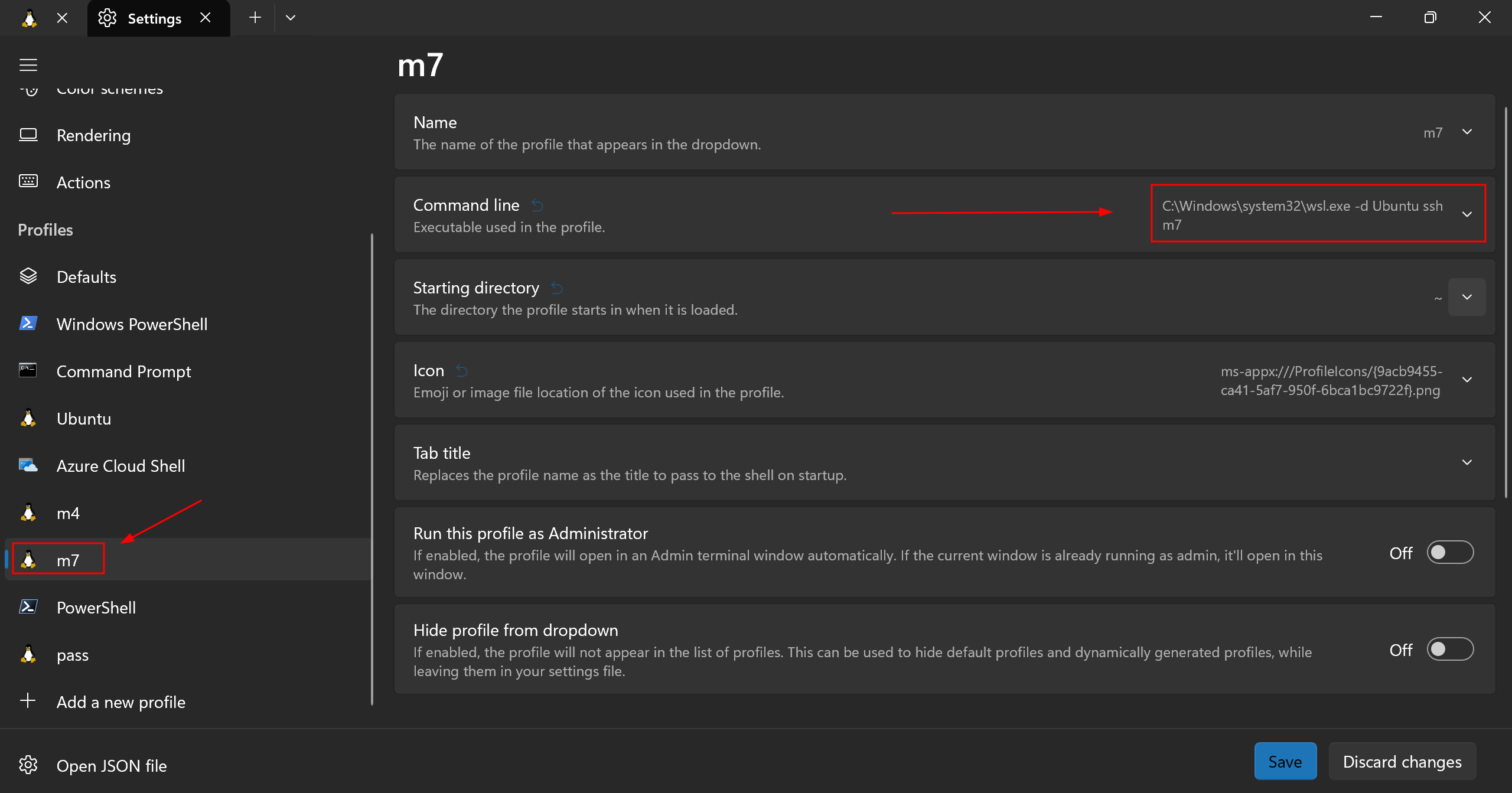
With the configuration above, you can quickly open the remote server in Windows Terminal using shortcuts like ctrl+alt+<number>.

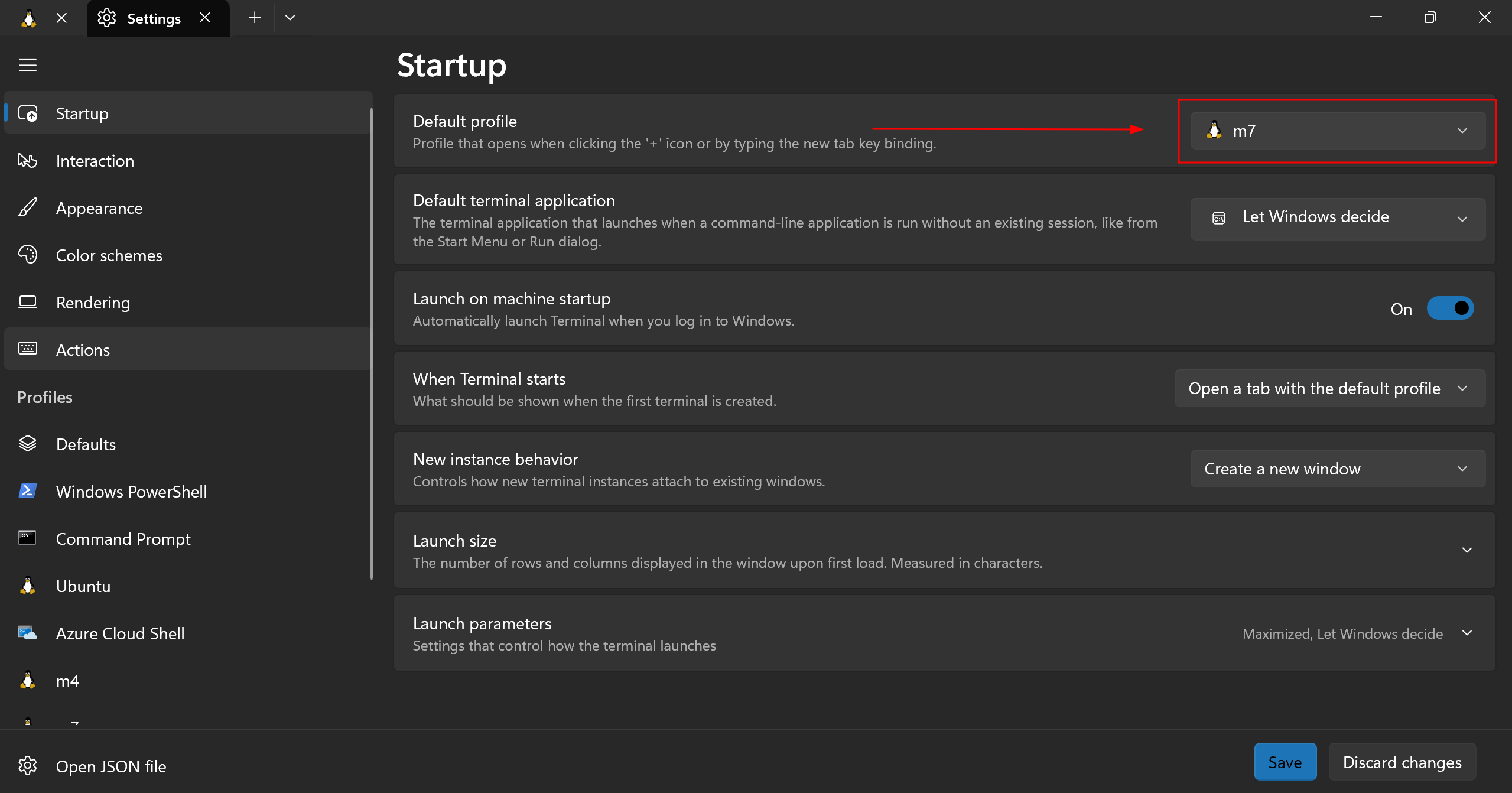
Of course, you can also set this server as the default terminal profile, just like I did. This way, opening Windows Terminal automatically connects to the server (and creating a new session with ctrl+shift+t also uses the default profile).
I use Vim as the pager for man. Add the following to ~/.bashrc:
export MANPAGER="vim +MANPAGER --not-a-term -"
This lets me browse man pages in Vim and copy example code from man docs to the Windows 11 local clipboard via Vim’s remote clipboard. The result looks like this:
Extensions
Since we are essentially synchronizing the system clipboard through X11 Forwarding, there are many possible extensions.
Tmux Integration
Keyboard-driven workflow for copying content to the local Windows 11 clipboard via Tmux.
VSCode Integration
Keyboard-driven workflow for copying content to the local Windows 11 clipboard from VSCode’s integrated terminal.
The solution above relies on WSL as a relay, so X11 Forwarding does not work in scenarios like VSCode Remote-SSH that don’t go through WSL. I wanted the same Tmux keyboard-driven copy workflow in VSCode’s integrated terminal as well.
The approach:
- Run a standalone X11 server on Windows – I chose VcXsrv
- Use the built-in
ssh.exeon Windows to forward X11 to the local VcXsrv
Here is my VSCode configuration:
{
    "terminal.integrated.profiles.linux": {
        "tmux": {
            "path": "tmux",
            "icon": "terminal-tmux",
            "args": ["-u", "new", "-A", "-s", "${workspaceFolderBasename}", "-n", "default"]
        }
    },
    "terminal.integrated.defaultProfile.linux": "tmux"
}
VcXsrv requires an environment variable to be set in PowerShell for X11 Forwarding to work:
# Add via: vim $PROFILE
$env:DISPLAY="127.0.0.1:0.0"
VSCode SSH configuration:
Host m7
User jinmiaoluo
HostName m7.jinmiaoluo.com
ForwardX11 yes
ForwardX11Trusted yes
RequestTTY force
RemoteCommand tmux -u new -A -s default -n default
Demo:
If you encounter this error:
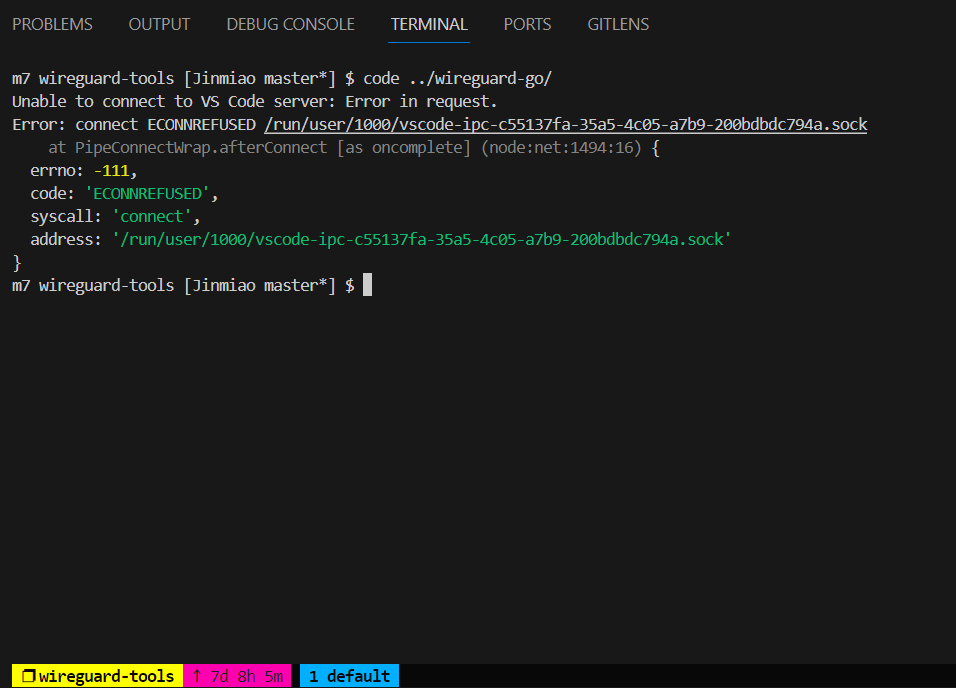
Add the following to your .tmux.conf:
# Compatibility with VSCode integrated terminal
set -ga update-environment 'VSCODE_GIT_ASKPASS_EXTRA_ARGS'
set -ga update-environment 'VSCODE_GIT_ASKPASS_NODE'
set -ga update-environment 'VSCODE_IPC_HOOK_CLI'
set -ga update-environment 'VSCODE_GIT_ASKPASS_MAIN'
set -ga update-environment 'VSCODE_GIT_IPC_HANDLE'
set -ga update-environment 'VSCODE_SHELL_INTEGRATION'
If you want to prevent VSCode’s Debug Launch from interfering with your Tmux session, add the following VSCode configuration:
{
    "terminal.integrated.automationProfile.linux": {
        "path": "/bin/bash",
        "icon": "debug",
    }
}
This ensures that debug operations launch in a separate terminal window instead of reusing your Tmux session.
Emacs Integration
This essentially runs the entire Emacs GUI on the server and forwards it back locally via X11 Forwarding. Demo:
Closing Thoughts
For a while, I was keen on building a headless Linux remote development environment (essentially a fully command-line version of solutions like GitPod). Back then, my remote clipboard solution relied on Lemonade combined with NeoVim. Years later, Windows can now achieve remote clipboard synchronization without any additional service.